
|
Introduction to Microcontroller Programming * Course Index * Introduction * About the Author * About this Course * Feedback * Course Navigation * Quick Course Navigation * How to use this Course * Acronyms Used and Course Conventions About PICmicro Chips * What is a PICmicro? * Microcontrollers * Digital versus Analogue * Inputs and Outputs * Memory * Programming * 16F1937 Architecture Clocking Your PICmicro Devices * Introduction * The Clock Circuit * Clock Settings * Clock Confusion E-Blocks * Introduction to E-blocks * Using E-blocks * E-blocks Boards Flowcode Step By Step * Introduction to Flowcode * Basic Flowcode Functions * Digital Outputs * Digital Inputs * Basic Loops * The LCD Display * Binary Numbers * Decisions * Goto (Connection Point) * 7-Segment Displays * Software Macro * Strings and Memory * A Simple Hi-Fi PICmicro Projects * Introduction to PICmicro Projects * Construction Methods * Choosing a Power Source * Adding Inputs * Input Conditioning * Adding Outputs * Adding Drivers Labs * Introduction and Lesson Plan * 1. Output * 2. Delay * 3. Connection Point * 4. Calculations * 5. Loop * 6. Input * 7. Decision * 8. LCD * 9. Keypad * 10. Analogue + EEPROM * 11. Software Macro * 12. External Interrupt * 13. Timer Interrupt |
(:Summary:Contains the 'action' links (like Browse, Edit, History, etc.), placed at the top of the page, see site page actions:) (:comment This page can be somewhat complex to figure out the first time you see it. Its contents are documented at PmWiki.SitePageActions if you need help. :) * Print (:comment (:if group Site,SiteAdmin,Cookbook,Profiles,PmWiki*:) (:comment delete if and ifend to enable backlinks:) * %item rel=nofollow class=backlinks accesskey='$[ak_backlinks]'% [[{*$Name}?action=search&q=link={*$FullName} | $[Backlinks] ]] (:ifend:) :) * Login Labs /
Lab 12 - External Interrupt<^< 11. Software Macro | Course Index | 13. Timer Interrupt >^>(:nl:) ->'''''1. Introduction''''' In the labs before this one, you probably noticed that the PIC was not reacting to inputs exactly when you wanted because the PIC was still busy doing something else. The external interrupt features of the PIC solve this problem. On a 16F1937, these external interrupts are on RB0 as a single pin interrupt and on PORTB as an interrupt on change (IOC) interrupt. If either of these two interrupts are initialized correctly in Flowcode, then a change on one of these inputs will cause the program to stop execution immediately and start executing the appropriate interrupt macro. This is called a ‘real time’ execution. ->'''''2. Setting up the equipment''''' 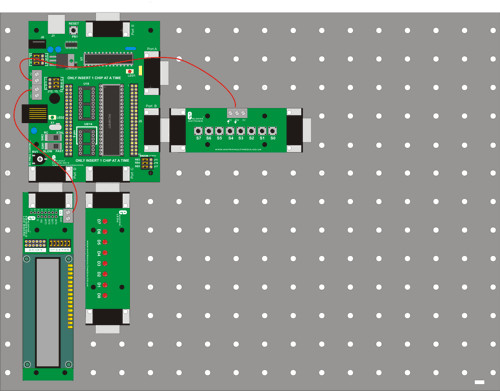 ->'''''3. Hardware settings'''''
->'''''4. Flowcode and download settings'''''
->'''''5. Software learning objectives''''' Input, output, binary code training, usage of macro’s, external interrupts, real time operation. ->'''''6. Hardware learning objectives''''' Real time operation of a PIC. ->'''''7. Instructions''''' Construct the system shown from E-blocks. In the course navigate to the ‘Flowcode step-by-step’ and review the section on simple Hi-fi (step 12). The descriptions of the Multiprogrammer board , the switch board, the LCD and the LED board are in the E-blocks section. Look into the 'Help' menu and function in Flowcode to get the info you need. Port B has two separate external interrupt possibilities that can be used simultaneously: * Pin interrupt on PB0, can be triggered with a rising or falling edge * Port interrupt on PB0-7. If a level changes on any of these 8 pins (or any combination of them), the interrupt gets triggered and the according macro starts executing. This is known as the Interrupt on Change (IOC). ->'''''8. Labs'''''
:L12-B1: Make a clock on the LCD that displays how many seconds have passed since the program was reset. Use a 1 sec delay for this. A rising edge on RB0 should call a macro that adds one to a variable called ‘count’. The status of this variable should be constantly shown on the LEDs. Do not use any kind of interrupt for this. Download this program to the PIC. :L12-B2: Variation to the program above, but now you should use an interrupt (rising edge on RB0). Download this program to the PIC. :L12-I3: Variation to the program above, but now you should use both external interrupts. One interrupt (falling edge on RB0) to trigger the up counter (count + 1), and the other interrupt on a falling edge of RB1 to trigger the down counter (count – 1). Download this program to the PIC and test it. :L12-B4: Here you are going to make an electronic dice. We need 2 dice for our game so this gives us a number between 2 and 12. Your program should start rolling the dice when SW0 is pressed. The numbers from 1 to 12 should display on the LCD one after the other over and over again with very short 20 msec intervals. This is much to fast to see with a human eye. When the switch at RB0 (SW0) gets pressed again, the number between 2 and 12, that was visible at that moment, should be displayed on the LCD. :L12-I5: Variation to the program above, but now the dice keeps rolling for as long as the switch SW0 is pressed. When SW0 is released again, the dice stop and the number displays on the LCD. Download this program to the PIC. :L12-I6: You are going to develop a program for a reaction timer game. When the program starts, all the LEDs at port C should light up. About 6 seconds later (this time has to be long enough) all these LEDs go out and a timer should start running (add one to a variable with 10msec intervals). At this time the player should press SW0 as fast as possible. SW0 stops the timer and the reaction time should be displayed on the LCD. :L12-E7: Variation to the program above, where you limit the total time to the size of the used variable. If this variable size is exceeded, then a message should be displayed on the LCD. For cheaters who keep SW0 pressed all the time, you should develop some kind of system that traps this condition. Download this program to the PIC. (:nl:)(:table style="clear:both":)
| |
(:Summary: Website page footer:)
Print - (:comment (:if group Site,SiteAdmin,Cookbook,Profiles,PmWiki*:) (:comment delete if and ifend to enable backlinks:) %item rel=nofollow class=backlinks accesskey='$[ak_backlinks]'% [[{*$Name}?action=search&q=link={*$FullName} | $[Backlinks] ]] (:ifend:) :) Search - Login
Page last modified on May 14, 2013, at 03:19 PM