
|
Introduction to Microcontroller Programming * Course Index * Introduction * About the Author * About this Course * Feedback * Course Navigation * Quick Course Navigation * How to use this Course * Acronyms Used and Course Conventions About PICmicro Chips * What is a PICmicro? * Microcontrollers * Digital versus Analogue * Inputs and Outputs * Memory * Programming * 16F1937 Architecture Clocking Your PICmicro Devices * Introduction * The Clock Circuit * Clock Settings * Clock Confusion E-Blocks * Introduction to E-blocks * Using E-blocks * E-blocks Boards Flowcode Step By Step * Introduction to Flowcode * Basic Flowcode Functions * Digital Outputs * Digital Inputs * Basic Loops * The LCD Display * Binary Numbers * Decisions * Goto (Connection Point) * 7-Segment Displays * Software Macro * Strings and Memory * A Simple Hi-Fi PICmicro Projects * Introduction to PICmicro Projects * Construction Methods * Choosing a Power Source * Adding Inputs * Input Conditioning * Adding Outputs * Adding Drivers Labs * Introduction and Lesson Plan * 1. Output * 2. Delay * 3. Connection Point * 4. Calculations * 5. Loop * 6. Input * 7. Decision * 8. LCD * 9. Keypad * 10. Analogue + EEPROM * 11. Software Macro * 12. External Interrupt * 13. Timer Interrupt |
(:Summary:Contains the 'action' links (like Browse, Edit, History, etc.), placed at the top of the page, see site page actions:) (:comment This page can be somewhat complex to figure out the first time you see it. Its contents are documented at PmWiki.SitePageActions if you need help. :) * Print (:comment (:if group Site,SiteAdmin,Cookbook,Profiles,PmWiki*:) (:comment delete if and ifend to enable backlinks:) * %item rel=nofollow class=backlinks accesskey='$[ak_backlinks]'% [[{*$Name}?action=search&q=link={*$FullName} | $[Backlinks] ]] (:ifend:) :) * Login Labs /
Lab 6 - Input<^< 5. Loop | Course Index | 7. Decision >^>(:nl:) ->'''''1. Introduction''''' Adding digital inputs to your microcontroller circuit is quite easy but is a big step forward. Now external signals are going to have an influence on how the program reacts. ->'''''2. Setting up the equipment''''' 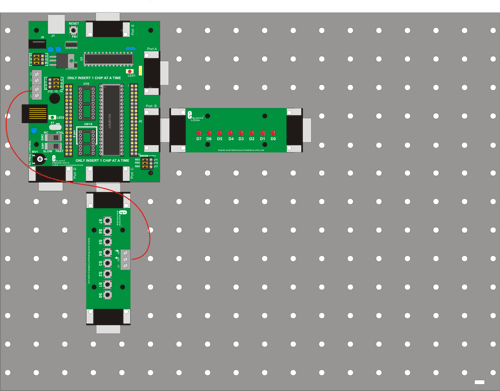 ->'''''3. Hardware settings'''''
->'''''4. Flowcode and download settings'''''
->'''''5. Software learning objectives''''' Input, output, binary code training, compiling a program to the PIC, clocking the PIC, PIC microcontroller basics. ->'''''6. Hardware learning objectives''''' Switches, input logic levels, pull-up/pull-down resistors. ->'''''7. Instructions''''' Construct the system shown from E-blocks. In the course navigate to the ‘Flowcode step-by-step’ and review the section on Digital inputs (step 3). In the course you will also find the sections on Clocking your PIC, and about PIC microcontroller basics useful. The descriptions of the Multiprogrammer board , the switch board and the LED board are in the E-blocks section. Make use of the 'Help' menu and function in Flowcode to get the info you need. During these exercises you are going to send different 8-bit codes to port B of your Microcontroller and read logic values as inputs on port C. Be aware of the speed of the microcontroller in XTAL mode. Using switches as inputs on a high speed device could cause bounce. ->'''''8. Labs'''''
:L6-B1: Show the status of the switches at port C on the LEDs at port B. Every time a switch gets pressed, the corresponding LED of port B lights up. :L6-B2: Show the status of the switches at port C on the LEDs at port B. Every time a switch gets pressed, the corresponding LED of port B should light up and stays on for 2 seconds. During these 2 seconds, no new inputs should be read. :L6-B3: If switch 'SW0' is pressed, then 'LED1' should light up. If switch 'SW1' is pressed, then 'LED2' has to light up. and so on. Nothing should happen if 'SW7' is pressed. Think before you start programming. This program can be really short. :L6-I4 : Use 2 'Loops' to write a program that counts up when SW0 is pressed and counts down when SW1 is pressed. The status of the count is shown on the LEDs of port B. :L6-I5: Use 2 'Loops' to write a program that causes the LEDs to run left when SW0 is pressed and run right when SW1 is pressed. The status of the count is shown on the LEDs of port B. :L6-I6: Draw up the full circuit diagram of the PIC with 8 LEDs on port B and 8 switches on port C, including the clocking circuit, the reset circuit, VDD and VSS connected to the PIC and the correct current limiting resistors connected between LEDs, switches and PIC. If you were to make a practical circuit of this drawing, and connect power to it, it should do exactly the same as the e-blocks system in front of you. Schematics in the E-blocks section and the full circuit diagrams in the datasheets of the E-blocks will come in handy when you do this task. (:nl:)(:table style="clear:both":)
| |
(:Summary: Website page footer:)
Print - (:comment (:if group Site,SiteAdmin,Cookbook,Profiles,PmWiki*:) (:comment delete if and ifend to enable backlinks:) %item rel=nofollow class=backlinks accesskey='$[ak_backlinks]'% [[{*$Name}?action=search&q=link={*$FullName} | $[Backlinks] ]] (:ifend:) :) Search - Login
Page last modified on May 13, 2013, at 03:33 PM