
|
Introduction to Microcontroller Programming * Course Index * Introduction * About the Author * About this Course * Feedback * Course Navigation * Quick Course Navigation * How to use this Course * Acronyms Used and Course Conventions About PICmicro Chips * What is a PICmicro? * Microcontrollers * Digital versus Analogue * Inputs and Outputs * Memory * Programming * 16F1937 Architecture Clocking Your PICmicro Devices * Introduction * The Clock Circuit * Clock Settings * Clock Confusion E-Blocks * Introduction to E-blocks * Using E-blocks * E-blocks Boards Flowcode Step By Step * Introduction to Flowcode * Basic Flowcode Functions * Digital Outputs * Digital Inputs * Basic Loops * The LCD Display * Binary Numbers * Decisions * Goto (Connection Point) * 7-Segment Displays * Software Macro ## Set up the Equipment ## Left or Right? ## Create New Macros ## More Efficient Macros ## Other macro features * Strings and Memory * A Simple Hi-Fi PICmicro Projects * Introduction to PICmicro Projects * Construction Methods * Choosing a Power Source * Adding Inputs * Input Conditioning * Adding Outputs * Adding Drivers Labs * Introduction and Lesson Plan * 1. Output * 2. Delay * 3. Connection Point * 4. Calculations * 5. Loop * 6. Input * 7. Decision * 8. LCD * 9. Keypad * 10. Analogue + EEPROM * 11. Software Macro * 12. External Interrupt * 13. Timer Interrupt |
(:Summary:Contains the 'action' links (like Browse, Edit, History, etc.), placed at the top of the page, see site page actions:) (:comment This page can be somewhat complex to figure out the first time you see it. Its contents are documented at PmWiki.SitePageActions if you need help. :) * Print (:comment (:if group Site,SiteAdmin,Cookbook,Profiles,PmWiki*:) (:comment delete if and ifend to enable backlinks:) * %item rel=nofollow class=backlinks accesskey='$[ak_backlinks]'% [[{*$Name}?action=search&q=link={*$FullName} | $[Backlinks] ]] (:ifend:) :) * Login Create New Macros<^< Left or Right? | Course Index | More Efficient Macros >^>(:nl:) From the menu select 'Macro' and click then 'New' (Macro > New). In the 'Name of new macro:' text box type in "LEFT". This is the name of the new macro. Underneath enter the description as "Left flash routine". You should have a dialogue window that looks like this: 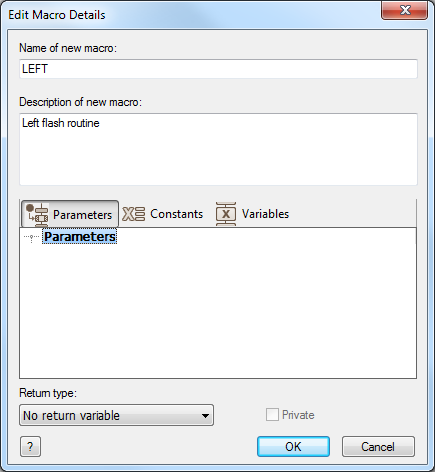 Select OK. Don't worry about all of the other text boxes on the macro dialogue window for now. The macro should now show in the main view. If not, from the menu select 'Macro' then select 'Show as Flowchart' and then click 'LEFT' from the sub menu (Macro > Show as Flowchart > LEFT). From the main flow chart cut the icons from the 'Yes' branch of the first Decision box and paste them into the 'LEFT' macro. You should have a macro that looks like this: 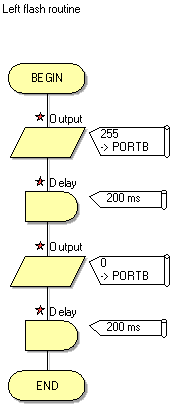 Similarly set up another new macro called "RIGHT" with a description "Right flash routine". From the main flow chart cut the icons from the Yes branch of the second decision box and past them into the 'RIGHT' macro. In the main flow chart insert a 'Macro' icon into each 'Yes' branch of each Decision icon. Double-click on each icon to set them to call the 'LEFT' and 'RIGHT' macros respectively. You should have a flowchart that looks like this: 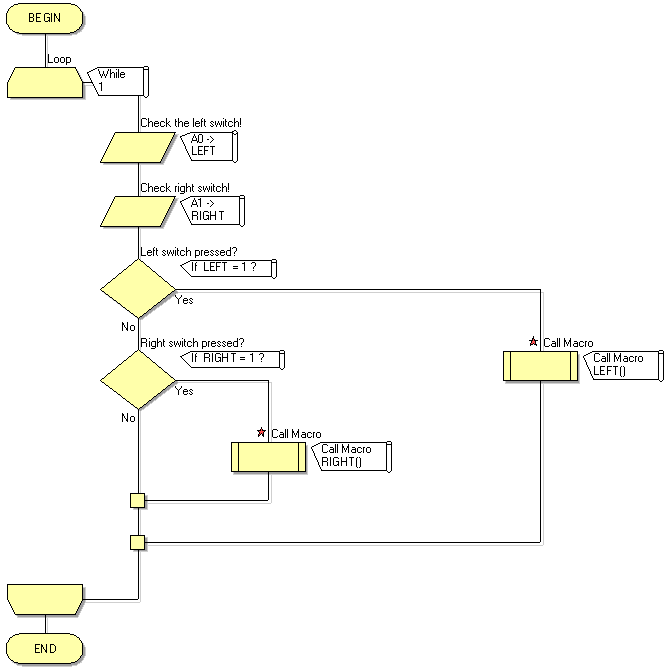 (:nl:)(:table style="clear:both":) (:nl:)(:table style="clear:both":)
| |
(:Summary: Website page footer:)
Print - (:comment (:if group Site,SiteAdmin,Cookbook,Profiles,PmWiki*:) (:comment delete if and ifend to enable backlinks:) %item rel=nofollow class=backlinks accesskey='$[ak_backlinks]'% [[{*$Name}?action=search&q=link={*$FullName} | $[Backlinks] ]] (:ifend:) :) Search - Login
Page last modified on May 01, 2013, at 02:45 PM