
|
Introduction to Microcontroller Programming * Course Index * Introduction * About the Author * About this Course * Feedback * Course Navigation * Quick Course Navigation * How to use this Course * Acronyms Used and Course Conventions About PICmicro Chips * What is a PICmicro? * Microcontrollers * Digital versus Analogue * Inputs and Outputs * Memory * Programming * 16F1937 Architecture Clocking Your PICmicro Devices * Introduction * The Clock Circuit * Clock Settings * Clock Confusion E-Blocks * Introduction to E-blocks * Using E-blocks ## About E-blocks ## E-blocks Projects ## How E-blocks Connect to Each Other ## Physical Properties of E-blocks ## Using a Backplane ## Protecting E-blocks Circuitry ## Using Covers ## Adding Power to E-blocks ## Understanding the Patch System ## Sharing a Port ## Using ZIF Sockets * E-blocks Boards Flowcode Step By Step * Introduction to Flowcode * Basic Flowcode Functions * Digital Outputs * Digital Inputs * Basic Loops * The LCD Display * Binary Numbers * Decisions * Goto (Connection Point) * 7-Segment Displays * Software Macro * Strings and Memory * A Simple Hi-Fi PICmicro Projects * Introduction to PICmicro Projects * Construction Methods * Choosing a Power Source * Adding Inputs * Input Conditioning * Adding Outputs * Adding Drivers Labs * Introduction and Lesson Plan * 1. Output * 2. Delay * 3. Connection Point * 4. Calculations * 5. Loop * 6. Input * 7. Decision * 8. LCD * 9. Keypad * 10. Analogue + EEPROM * 11. Software Macro * 12. External Interrupt * 13. Timer Interrupt |
(:Summary:Contains the 'action' links (like Browse, Edit, History, etc.), placed at the top of the page, see site page actions:) (:comment This page can be somewhat complex to figure out the first time you see it. Its contents are documented at PmWiki.SitePageActions if you need help. :) * Print (:comment (:if group Site,SiteAdmin,Cookbook,Profiles,PmWiki*:) (:comment delete if and ifend to enable backlinks:) * %item rel=nofollow class=backlinks accesskey='$[ak_backlinks]'% [[{*$Name}?action=search&q=link={*$FullName} | $[Backlinks] ]] (:ifend:) :) * Login Using a Backplane<^< Physical Properties of E-blocks | Course Index | Protecting E-blocks Circuitry >^>(:nl:) If you are reconfiguring your E-blocks system regularly or you want others to go through the process of doing this then we suggest that you use steel or Nylon M3 bolts on all your E-blocks and that you use a metal backplane to mount them on. The E-blocks can be mounted on the backplane and will stay in position without using securing bolts behind the backplane - although if you are going to move the system around then one or two nuts on the back will ensure your E-blocks stay in place. The diagram below shows 12mm bolts with self locking nuts - these will keep the bolts secured onto the circuit board and will allow you to position the boards on the backplane as you wish. 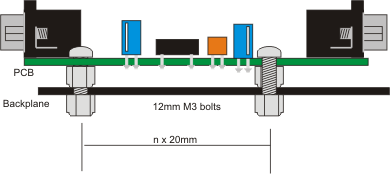 For best results with this mounting technique you should attach the nuts and self locking bolts and then slacken off the nuts by a quarter turn - this allows the bolts a little movement in the PCB mounting holes and makes them easier to take off the backplane. If you are concerned about preserving the painted finish of your backplane then you can substitute the steel bolts with nylon ones. However we have found the powder coating of the backplanes is sufficiently strong not to warrant this. Using E-blocks on the bench You do not need a backplane to use E-blocks - you can simply connect them together on the bench. In each E-blocks package you will find a four small rubber feet to facilitate this - these will provide a degree of protection for your E-blocks boards and will help prevent shorts from tinned copper wire and other metal objects on the bench. The disadvantage of this is that your E-blocks system will not be portable, and that the connectors will be under more stress as the system is moved about. 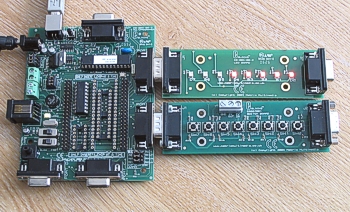 (:nl:)(:table style="clear:both":)
| |
(:Summary: Website page footer:)
Print - (:comment (:if group Site,SiteAdmin,Cookbook,Profiles,PmWiki*:) (:comment delete if and ifend to enable backlinks:) %item rel=nofollow class=backlinks accesskey='$[ak_backlinks]'% [[{*$Name}?action=search&q=link={*$FullName} | $[Backlinks] ]] (:ifend:) :) Search - Login
Page last modified on January 30, 2012, at 02:48 PM