
|
Introduction to Microcontroller Programming * Course Index * Introduction * About the Author * About this Course * Feedback * Course Navigation * Quick Course Navigation * How to use this Course * Acronyms Used and Course Conventions About PICmicro Chips * What is a PICmicro? * Microcontrollers * Digital versus Analogue * Inputs and Outputs * Memory * Programming * 16F1937 Architecture Clocking Your PICmicro Devices * Introduction * The Clock Circuit * Clock Settings * Clock Confusion E-Blocks * Introduction to E-blocks * Using E-blocks * E-blocks Boards Flowcode Step By Step * Introduction to Flowcode * Basic Flowcode Functions * Digital Outputs * Digital Inputs * Basic Loops ## Set up the Equipment ## Counting Sheep Badly ## Set up the Flowchart ## Create the Variables ## Set up the Calculation ## Loop Properties ## Set up the Input ## Set up the Output ## Adding the LED array ## Adding the Switches ## Simulation ## The Solution - Adding a Delay * The LCD Display * Binary Numbers * Decisions * Goto (Connection Point) * 7-Segment Displays * Software Macro * Strings and Memory * A Simple Hi-Fi PICmicro Projects * Introduction to PICmicro Projects * Construction Methods * Choosing a Power Source * Adding Inputs * Input Conditioning * Adding Outputs * Adding Drivers Labs * Introduction and Lesson Plan * 1. Output * 2. Delay * 3. Connection Point * 4. Calculations * 5. Loop * 6. Input * 7. Decision * 8. LCD * 9. Keypad * 10. Analogue + EEPROM * 11. Software Macro * 12. External Interrupt * 13. Timer Interrupt |
(:Summary:Contains the 'action' links (like Browse, Edit, History, etc.), placed at the top of the page, see site page actions:) (:comment This page can be somewhat complex to figure out the first time you see it. Its contents are documented at PmWiki.SitePageActions if you need help. :) * Print (:comment (:if group Site,SiteAdmin,Cookbook,Profiles,PmWiki*:) (:comment delete if and ifend to enable backlinks:) * %item rel=nofollow class=backlinks accesskey='$[ak_backlinks]'% [[{*$Name}?action=search&q=link={*$FullName} | $[Backlinks] ]] (:ifend:) :) * Login Loop Properties<^< Set up the Calculation | Course Index | Set up the Input >^>(:nl:) If you double-click on the Loop icon you will see the Properties box displayed: 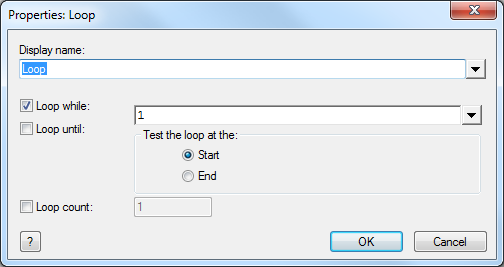 The Loop Properties dialogue box shows you the options you have for controlling the loop. Next to the 'Loop while:' statement is the loop control text box. In this text box you put the loop condition: the loop will keep running until this condition is met. For example in this text box you could write: count = 10 (Loop runs while variable count = 10) count > 4 (Loop runs while variable count is greater than 4) count = preset (Loop runs while variable count is the same as variable preset) In all of the above the loop will keep running as long as the condition in the 'Loop while' text box is true. In programming 'true' has a special meaning. 'true' inside a computer has to have a numerical value so that it can be tested. The numerical value has to be on one bit and therefore true is assigned the value '1'. Similarly 'false' is assigned the numerical value '0'. The default condition in the 'Loop while:' text box is simply '1'. This condition is always 'true' and so placing a value of '1' inside the 'Loop while' text box means that the loop will run forever. All programs will have a Loop forever structure somewhere near the beginning of the program. If they did not then the program might end and the computer would just sit there doing nothing, which would not be very useful. When to test?In the Loop icon properties you will see that you can set the loop to test the condition at the start of the loop or at the end of the loop. Understanding this option is important: if you have a counter or a process that can change the value of a variable in the loop then testing at the start or end of the loop will effect the number of loops that run. Loop for a number of timesAs your experience grows and you make more programs you will find that very often you just want to run a loop for a given number of times. Because of this the Loop icon dialogue window allows you check the 'Loop count:' check box and enter a number in the associated text box to make the loop run for a predetermined number of times. (:nl:)(:table style="clear:both":)
| |
(:Summary: Website page footer:)
Print - (:comment (:if group Site,SiteAdmin,Cookbook,Profiles,PmWiki*:) (:comment delete if and ifend to enable backlinks:) %item rel=nofollow class=backlinks accesskey='$[ak_backlinks]'% [[{*$Name}?action=search&q=link={*$FullName} | $[Backlinks] ]] (:ifend:) :) Search - Login
Page last modified on May 02, 2013, at 04:02 PM